Cross-browser Fixes: how to keep an interactive site stable in different browsers
Extensive analysis of the cross-browser layer of the project: from hiding the cursor and glass filters to degradation on touch/reduced-motion and control of overlay layers.
Why is this topic critical for this project?
This site relies on effects that most often break at the interface of browser engines:
- custom cursor,
backdrop-filter+ SVG distortion,- fixed overlay and portals,
- dynamically appearing interactive elements,
- a large number of themes and visual modes.
If cross-browser functionality is not systematically closed, the user gets an unpredictable UX: “wow in one browser, crash in another.”
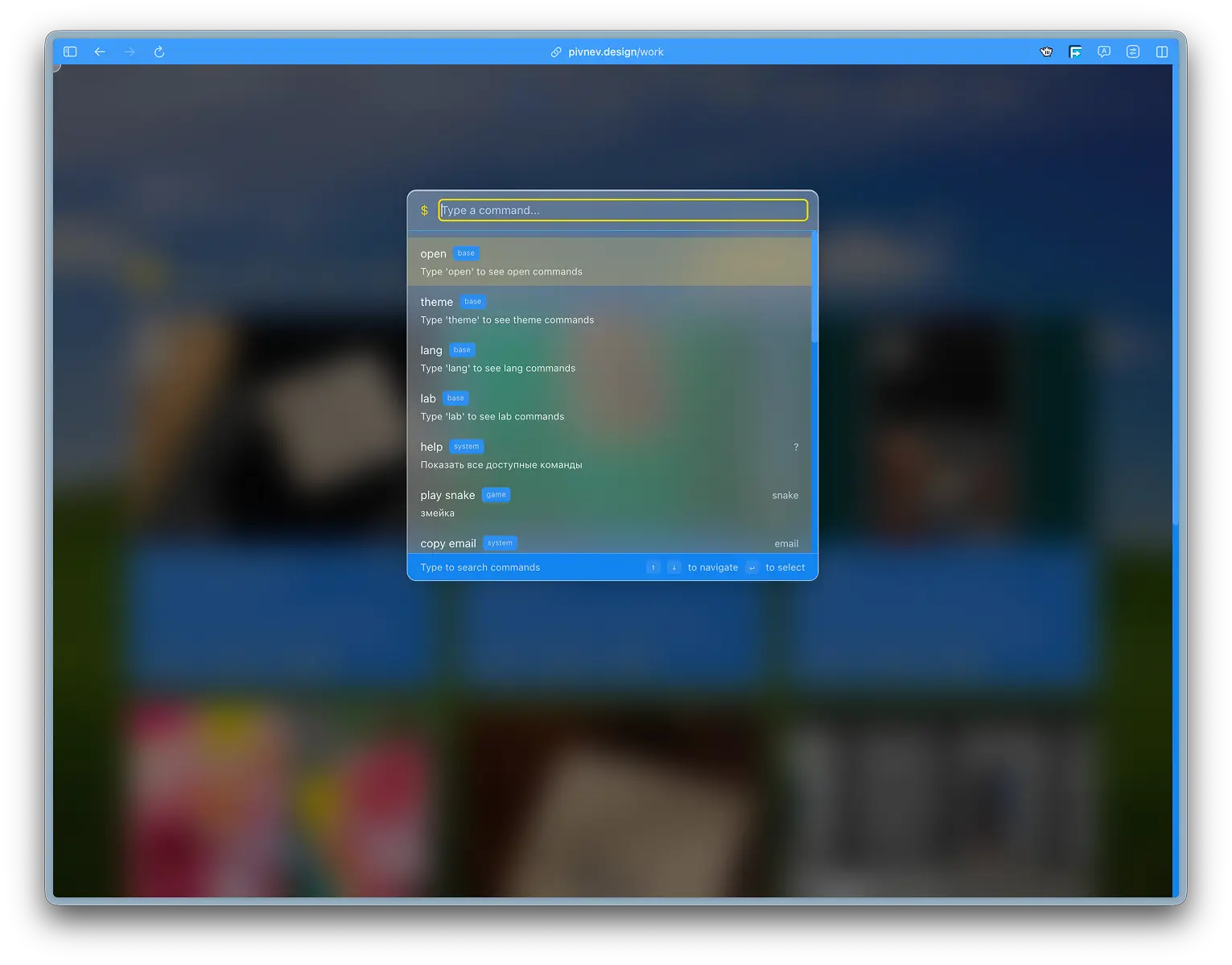
Validation area
In the project, cross-browser risks are collected in three groups:
| Group | Examples |
|---|---|
| Visual effects | cursor, blur, glass, noise, overlay |
| Interactions | hover, keyboard palette, dynamic DOM |
| Behavioral gates | touch mode, reduced motion, fallback |
That is, we are talking not only about CSS compatibility, but about the holistic behavior of the interface.
Map "problem -> solution" in the current code
| Problem | Where is closed |
|---|---|
| System cursor breaks through interactive elements | src/components/CustomCursor.tsx (injection style) |
| Safari blur features | src/styles/utilities.css, inline WebkitBackdropFilter |
| Stacking context conflicts with overlays | createPortal + #overlay-root in globals.css |
| Undesirable behavior on touch | gating in CustomCursor |
Animations at prefers-reduced-motion | JS gate + global CSS media query |
| Loss of magnetic effect on dynamic nodes | MutationObserver to CustomCursor |
| Microfreezes when driving | requestAnimationFrame, translate3d, will-change |
Further - in detail on each point.
1) Stable hiding of the system cursor
Symptom
On some browsers and states, the system cursor can “return” on top of the custom one:
- with
focusfields, - on some interactive components,
- when moving to/from overlay.
Solution
In CustomCursor the cursor is hidden not pointwise, but through mount injection with wide coverage:
This approach is less “elegant”, but much more reliable in cross-browser reality.!Checking cursor interactive mode on real UI
Why this matters for UX
If both cursors (system + custom) are visible on the same page, the feeling of quality collapses instantly. Therefore, stability is prioritized over “pure” style architecture.
2) Safari and backdrop-filter
Symptom
Safari's glass and blur layers have historically been sensitive to prefixes and application context.
Solution
Where blur is used, both versions of the property are specified at once:
This is applied in both the palette and the header.
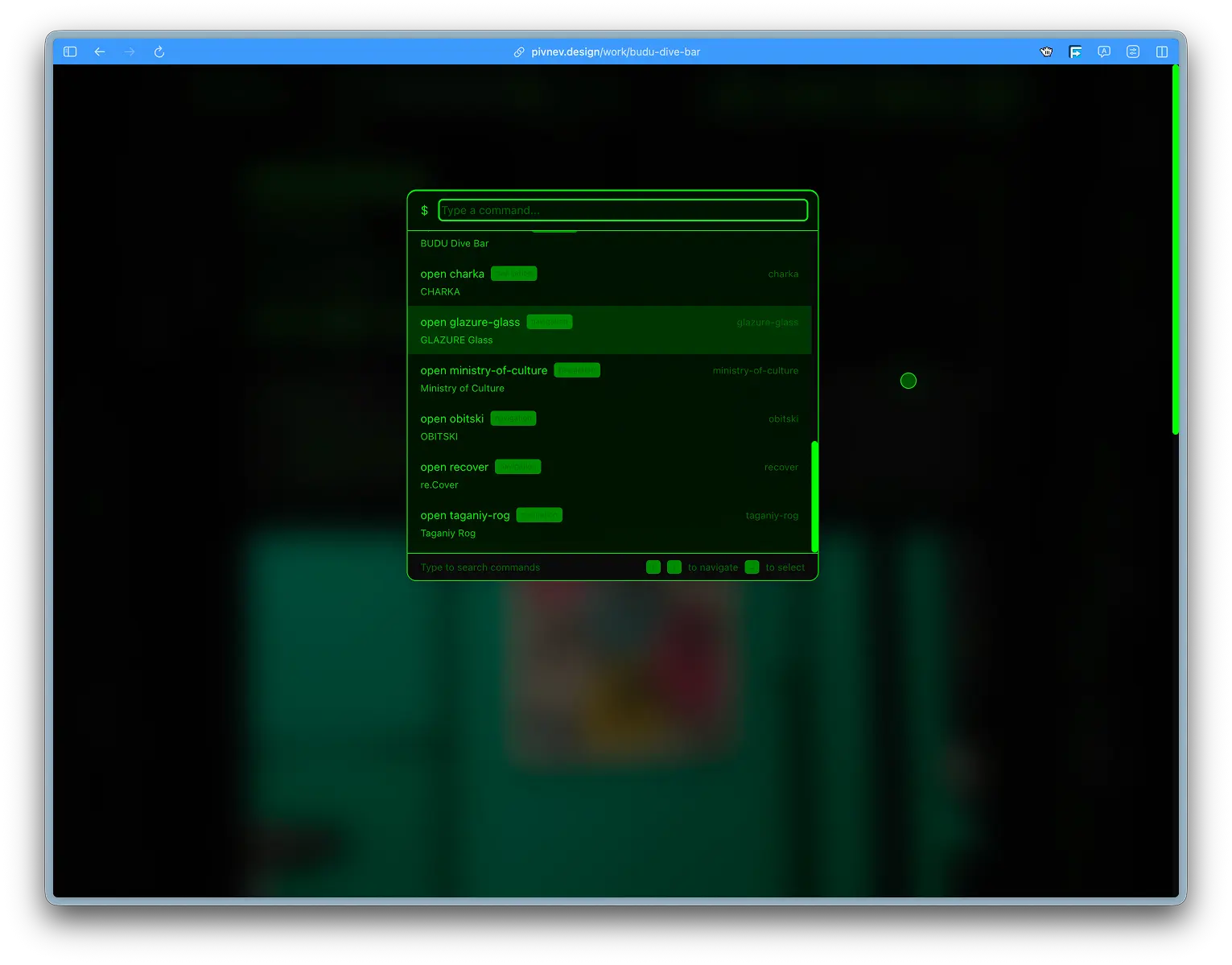
###Additional precaution
Even with the blur prefix, it is better to keep the layers isolated in responsibility:
- separate overlay-backdrop,
- separate content-layer,
- separate border/highlight layers.
This is exactly what is done in StickyHeader.
3) Overlay and stacking context

Symptom
Overlays often break when transform, filter, opacity are present on parent nodes.
Solution
The palette is rendered through the portal into a separate root:
And in globals.css the root is protected:
This reduces the number of browser-dependent surprises.
Why just z-index: 9999 is not enough
If the parent has already created a new stacking context, a "large z-index" may not help. Portal to a separate root provides a guaranteed separation of the overlay from the problematic context.
4) Touch devices: separate mode without custom cursor
Symptom
Desktop cursor effects on touch:
- do not add value,
- may interfere with interaction,
- often visually conflict with native patterns.
Solution
The cursor layer is disabled when touch is detected:
Bottom line: the touch user gets a predictable native UX without any extra layers.
5) prefers-reduced-motion: cross-browser accessibility
Symptom
Animations in the cursor, magnets and transitions may be undesirable for some users.
Solution: two levels
- JS gate in interactive components.
- Global CSS media-query-fallback:
This ensures compatibility with both browsers and the user’s system settings.
6) Performance is part of compatibility
Cross-browser compatibility is not just a matter of “supported/not supported”. This is also the same smoothness in different engines.
What has been done
- movement of the cursor and magnets in
requestAnimationFrame, - handlers
mousemoveandscrollwith{ passive: true }, - offsets via
translate3d(...), - preparation of interactive nodes via
will-change: transform.
Why this reduces the risk of regressions
The less forced reflow/repaint in difficult areas of the interface, the closer the behavior between browsers is in terms of subjective smoothness.
7) Dynamic DOM and MutationObserver

Symptom
Interactive elements appear not only at the start of the page:
- drop-down menu items,
- palette elements,
- conditionally rendered blocks.
If the "magnet" registers elements only once, part of the interface falls out of behavior.
Solution
CustomCursor watches for DOM changes and adds/removes magnetic elements dynamically.
This is especially important for compatibility of complex overlay scenarios.
8) Isolate areas that the cursor should ignore
There are clear exceptions to searching for text targets:
Without such filters, the cursor begins to “read” the service layers of the interface and behaves unstable.
9) Web typography and fallback fonts
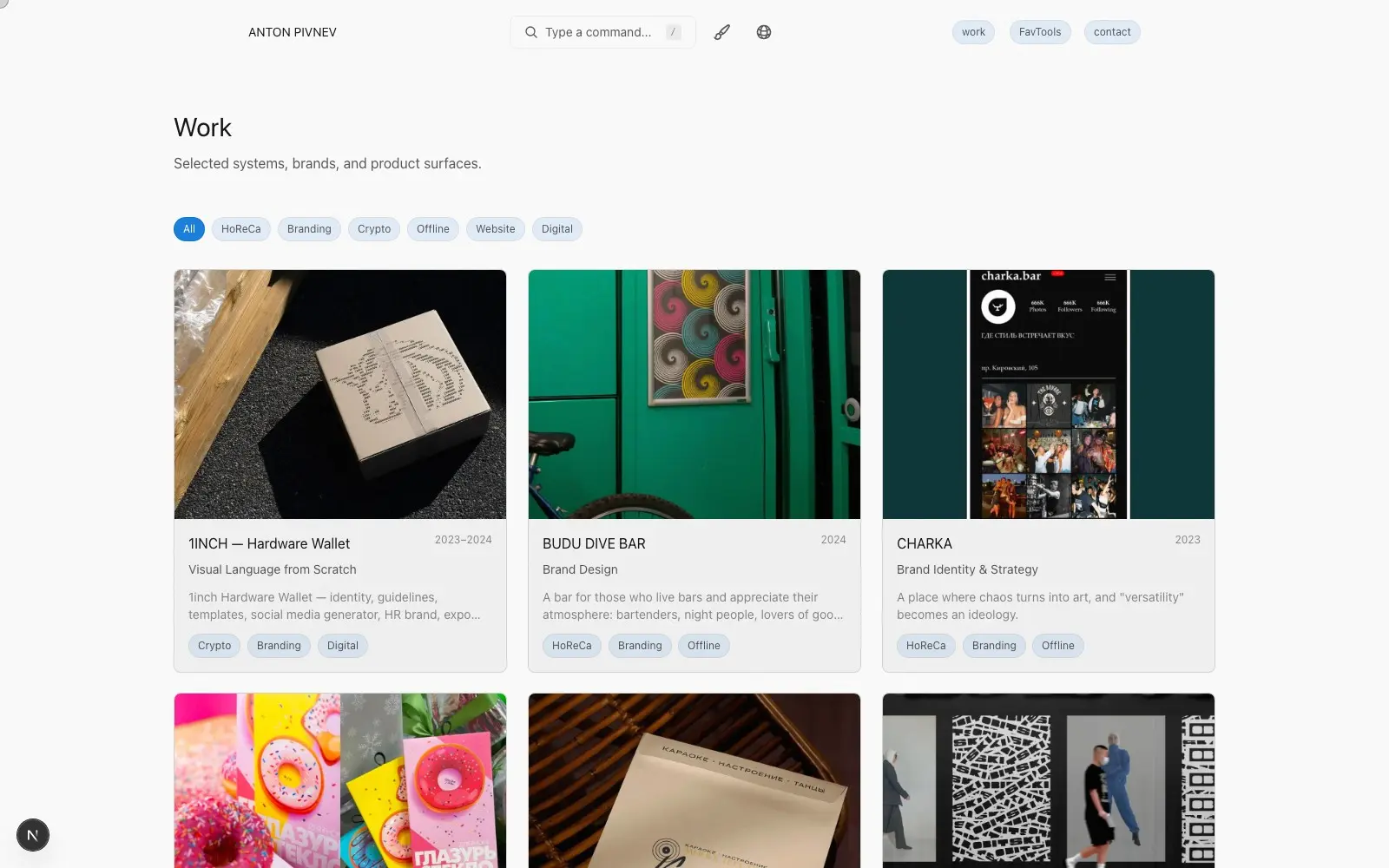
layout.tsx pre-connects a set of fonts for themes, and theme variables define fallback chains:
JetBrains Mono,Orbitron,Share Tech Mono,Inconsolata,- system fallback (
monospace,sans-serif).
Why this applies to cross-browser compatibility:
- different rendering of font metrics changes the density of the interface,
- the fallback chain reduces the risk of “collapse” when the webfont is unavailable.
10) Theme as a set of tokens, not a set of “hard” colors
In variables.css each topic is defined through one variable structure:
--bg-,--text-,--border-*,--glass-,--cursor-,--code-*.
Plus themed backgrounds and overlay variables.
Compatibility benefit: components use tokens rather than disparate hardcoded colors. Therefore, the behavior is more consistent when changing themes across browsers.
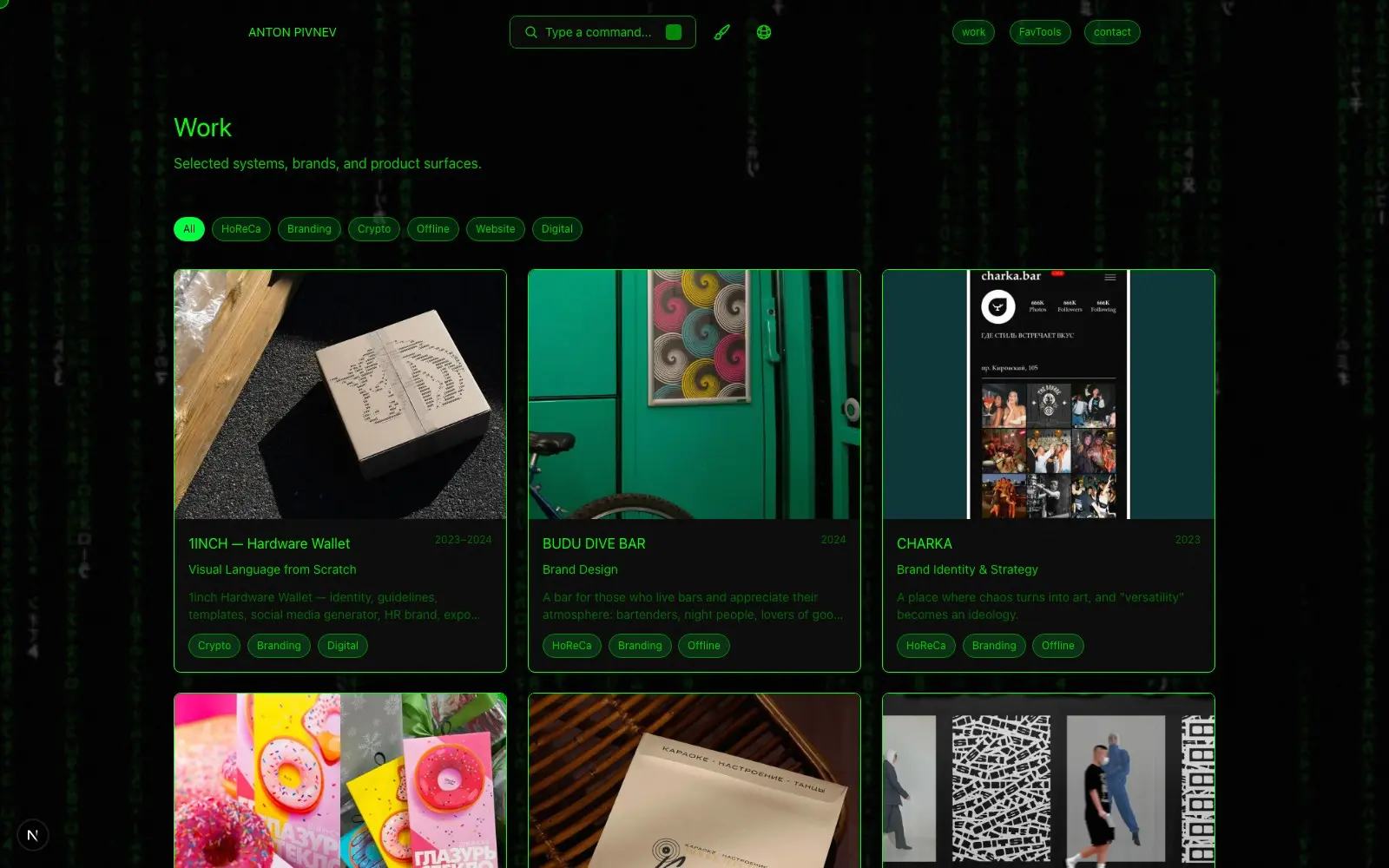
11) Glass cap effect and risk profile
StickyHeader uses the combination:
backdropFilterblur,- SVG filters (
feTurbulence,feDisplacementMap), - additional highlight/noise/border layers.
This is a visually rich solution, but risky for compatibility. Therefore, the structure is divided into separate simple layers: if one layer behaves imperfectly, the rest retain functionality and readability.
12) What already works as safe degradation
There are important "fuses" in the current architecture:
- There is no cursor on touch.
- There is no cursor with reduced motion.
- Overlay is isolated from the main tree.
- Blur works with webkit fallback.
- Interactive areas are marked
data-hover-target. - DOM dynamics are caught by the observer.
This is practical cross-browser compatibility: not ideal pixel identicalness, but stability of semantic scenarios.
13) Practical regression test scenario
Below is a checklist that is useful to run after any interactive edits.
Desktop
- Check that there is no system cursor on
a/button/input. - Check the cursor shape-switch (none/text/interactive).
- Check the magnet on
.btn,.tag, cards. - Check the opening of the
/palette and its overlay behavior. - Check theme/lang switching from the palette and from the header.
###Touch
- Check that
CustomCursoris not rendered. - Check that the main CTA/navigation works natively.
Reduced motion
- Check with system setting
reduce. - Check that the cursor layer is not activated.
- Check that transitions are shortened.
Overlay and layering
- Check the palette over the content on all routes.
- Check that clicking on backdrop closes the palette.
- Check that the palette does not “catch” the background target elements.
14) Diagnostic tools in the browser
Useful quick checks in DevTools:
And CSS checks:
- computed
backdrop-filter/-webkit-backdrop-filter, - computed
cursor: noneon interactive elements, - presence of
will-change: transformin target components.
15) What was NOT done specifically in the project
!15) What was NOT done specifically in the project - illustration1. There is no attempt to polyfill everything for the sake of absolute pixel identity.
- There are no heavy runtime compatibility libraries for basic CSS effects.
- There are no “magic” browser sniffing branches for user-agent.
Instead, a set of point-based, explainable decisions is used at the component architecture level.
16) Limitations of the current version
Fair limits to consider:
- The visual identity of glass layers between engines is not 100% and should not be 100%.
- The list of interactive selectors requires manual control when new UI patterns appear.
- Complex header effects should be checked after major edits to themes and background images.
This is normal technical debt for an interface with an active visual system.
17) File structure where key fixes live
For a compatibility review, it is usually enough to start with these files.
18) Result in terms of product
After applying this layer the user receives:
- stable cursor control on desktop,
- readable palette on top of any background,
- predictable fallback on touch/reduced motion,
- the same logic of interactions regardless of the page.
This is the goal of cross-browser work in a front-end project: not the “perfect screenshot,” but a sustainable UX flow.
Conclusion
Cross-browser Fixes in this project is not a separate “patch file”, but a systematic approach:
- architectural insulation layers,
- obvious behavior gates,
- accurate performance control,
- targeted fallbacks for known browser weaknesses.
It is due to this that the interactive and visually rich interface remains functional in real conditions, and not just in one “ideal” environment.
Appendix A: Browser Risk Matrix by Subsystem| Subsystem | Chrome/Edge | Safari | Firefox | Criticality |
|---|---|---|---|---|
| Custom cursor hide | usually stable | requires careful coverage focus/interactive | stable with full selector | high |
| Glass/backdrop | stable | need -webkit-backdrop-filter | depends on configuration, but usually stable | high |
| Portal overlay | stable | stable when isolated as root | stable | high |
| Magnetic transform | stable | it is important not to overload layers | stable at will-change | average |
| Reduced motion gating | stable | stable | stable | high |
| Dynamic target detection | stable | stable | stable | average |
The matrix is useful not as a “truth for all times”, but as priorities for regression testing.
Appendix B: Specific incidents that the current architecture prevents
Incident 1: palette visually below content
Typically the cause is a stacking context conflict due to transform on the parent container.
Current antidote:
createPortalto#overlay-root,- separate z-index of the root,
- removing
transform/filterfrom overlay-root.
Incident 2: Double cursor in interactive areas
Usually the reason is partial overlap of CSS rules.
Current antidote:
- mount-injection style with a wide mask,
- separate control of focus states.
Incident 3: magnet only works on some buttons
The usual reason is that dynamically added nodes were not registered.
Current antidote:
MutationObserverwith added/removed nodes processing.
Appendix C: CSS Compatibility Benchmark Set
Below is the minimum set that cannot be "accidentally deleted" without repeating the full test:
This block is actually the baseline for interface stability.
Appendix D: How to check after changing themes
Changes in variables.css may indirectly break compatibility, even if the JS was not touched.
You need to check:
- Contrast of text and glass panels on dark and light themes.
- Readability of the content under the blur in the header and palette.
- Cursor behavior on contrasting topics (
norton,matrix,vaporwave). - Correct background overlay (
--theme-bg-overlay).
Especially important in retro themes where fillets are intentionally disabled (border-radius: 0 !important).
Appendix E: How to check after cursor change
For any edit CustomCursor.tsx go:
- Checking hoverType transitions (
none -> text -> interactive). - Checking the threshold
hoverThresholdin dense UI zones. - Checking magnets on cards, tags, buttons.
- Checking ignored areas (
#overlay-root,.grain-overlay,.lightbox-overlay). - Check that listeners/raf is cleared on unmount.
This reduces the chance of “silent” leaks and accidental regressions.
Appendix F: quick commands for manual diagnostics
Plus visually check computed styles on the palette and header.
Appendix G: release testing regulations
Before posting changes to the interactive layer:
- Run
npm run build. - Manual checking of desktop scripts (Chrome + Safari + Firefox).
- Manual check of the touch script (emulator or device).
- Checking reduced motion.
- Checking overlay scenarios (palette, lightbox, menu).
- Check at least 3 contrasting topics.
If any point falls, the release of the interactive is postponed until the fix.
Appendix H: why cross-browser compatibility is included in a separate article
Because for this project, compatibility is not a “finishing touch”, but part of the architecture.
- Cursor, palette and atmosphere affect the entire interface.
- An error in one place is instantly noticeable throughout the site.
- “On-site” repairs are too time-consuming if the rules are not fixed in advance.
This article actually serves as operational documentation for future changes.
Additional summary
The result is a practical standard:
- the effects remain expressive,
- behavior remains predictable,
- degradation remains controlled,
- user experience does not depend on a “successful” browser.
This is exactly what you need from a cross-browser layer in an interface with a high degree of interactivity.